
The Path Trace and PMC render kernels are the best choice for rendering physically based, photo realistic images. The increase in quality does come with the cost of increased render times. Path tracing may have difficulty rendering scenes that use small light sources and may not render proper caustic properly. In these situations the PMC render kernel is the better choice. Testing renders using each of the render kernels is the best way to determine which kernel is the best choice for a given scene. Figure 1 shows the Path Tracing settings in the OctaneRender settings.
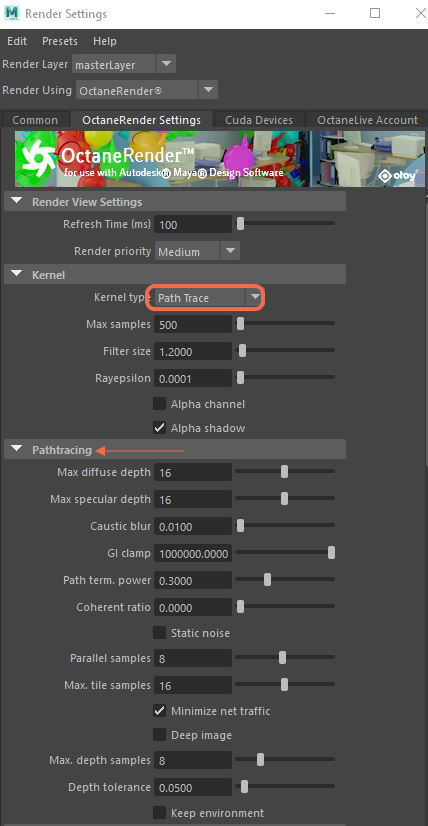
Figure 1: The Path Trace settings in the OctaneRender tab.
Path trace rendering parameters
Max Samples
Sets the maximum number of samples per pixel before the rendering process stops. The higher the number of samples per pixel, the cleaner the render. There is no rule as to how many samples per pixel are required for a good render, it is subjective and may vary depending on the content and complexity of the scene being rendered.
Filter Size
Sets the filter size in terms of pixels. This can improve aliasing artifacts in the render. However, if the filter is set too high, the image can become blurry.
Rayepsilon
Is the distance between the geometry and the light ray when calculating ray intersections for lighting and shadowing. Larger values push rays away from the geometry surface. Lower values are more accurate, but can cause artifacts on large or distant objects. Ray Epsilon is similar to raytracing bias in other rendering engines. Adjust Ray Epsilon to reduce artifacts in large scale scenes.
Alpha Channel
This option removes background images or colors created by the SunSky environment node from the rendered image while not affecting any lighting cast by the environment. This can be useful if the user wants to composite the render over another image and does not want the background to be present. Note that objects appearing in the RGB channels will have a bleeding edge which may appear as noise artifacts however these edges are not included in the alpha channel itself.
Alpha Shadow
Allows any object with transparency (specular materials, materials with opacity settings and alpha channels) to cast a shadow accordingly instead of behaving as a solid object.
Max diffuse depth
The maximum number of time a ray can bounce/reflect/refract off of a diffuse or very rough surface. Higher values mean higher render times but more realistic results. For outdoor renders a good setting is around 4. For lighting interiors with natural light (the sun and the sky) you will need higher settings such as 8 or more. In the real world the maximum diffuse bounces would not exceed 16, it is possible to use a value higher than 16 but this is usually not necessary.
Max specular depth
Controls the number of time a ray can be refracted before dying. Higher numbers mean higher render times but more color bleeding and more details in transparent materials. Low numbers can introduce artifacts or turn some refractions into pure black.
Caustic Blur
Is used to reduce noise in caustic light patterns. High values may result is softness in the caustic patterns (see Figure 2)

Figure 2: A comparison of caustic light patterns rendered with different Caustic blur settings.
GI Clamp
clamps the contribution for each path to the specified value. By reducing the GI Clamp value, you can reduce the amount of “fireflies” caused by sparse but very strongly contributing paths. Reducing this value reduces noise by removing energy (See Figure 3).

Figure 3: A comparison of renders using different GI Clamp values.
Path Termination Power
High values increase render speed but may cause higher noise in dark areas.
Coherent ratio
Increasing this value will increase the render speed but may introduce low-frequency noise or blotches. Eliminating the blotchy appearance may require minimum of a few hundred or even a few thousand samples per pixel to go away depending on the contents of the scene. Figure 4 shows a comparison of renders using different Coherent ratio settings.

Figure 4: A comparison of renders using Coherent Ratio values.
Static Noise
Keeps noise patterns static between rendered frames in a sequence when enabled
Parallel Samples
Controls how many samples are calculated in parallel. Smaller values require less memory to store the samples state but may cause the render to be a bit slower. High values require more memory but can reduce render time. The change in performance depends on the scene and the GPU architecture.
Max Tile Samples
Controls the number of samples per pixel that Octane will render before storing the result in the render buffer. A higher number means that results arrive less often in the film buffer.
Minimize Net Traffic
Distributes only the same tile to the net render slaves until the max samples/pixel has been reached for that tile and only then will the next tile is distributed to slaves when enabled. Work done by local GPUs is not affected by this option. This way a slave can merge all its results into the same cached tile until the master switches to a different tile.
Deep Image
is an option to enable rendering of deep pixel images used for deep image compositing. This is covered in the Deep Image Rendering section of this guide.
Maximum Depth Samples is used when deep image rendering is enabled. This sets the maximum number of depth samples per pixel. This is covered in the Deep Image Rendering section of this guide.
Depth Tolerance
Is used when deep image rendering is enabled. The depth samples whose relative depth difference falls below this tolerance value are merged together. This is covered in the Deep Image Rendering section of this guide.
Keep Environment
Is used in conjunction with the Alpha Channel setting. It allows the background to be visible in the rendered image while at the same time, keeping the alpha channel.
Comments
0 comments
Please sign in to leave a comment.