
Materials
The first time a Revit material is selected from the plugin, the plugin will convert that Revit material to an Octane material. Once this happens, the Octane material should be the “master copy” of that material, since changing the Revit material will not automatically change the Octane material.
There are five types of materials available in OctaneRender for Revit.
- Diffuse — Used for dull, non-reflecting materials or light emitting surfaces (mesh emitters).
- Glossy — Used for shiny materials such as plastics or metals
- Specular — Used for transparent materials such as glass and water
- Mix — Used to mix any two material types
- Portal — Used to designate openings such as windows or doors in otherwise closed interior scenes, to allow the render kernel to better sample light from those areas. The Portal material is covered in more detail in the Lighting section.
The most commonly used materials are the Diffuse, Glossy, and Specular. The Mix material is often used to blend any combination of these material together to provide deeper surface characteristics (figure 1).

Figure 1: Examples of the Diffuse, Glossy, and Specular Octane materials
The OctaneRender materials can be accessed from the Materials tab in the OctaneRender Setup window. (figure 2).
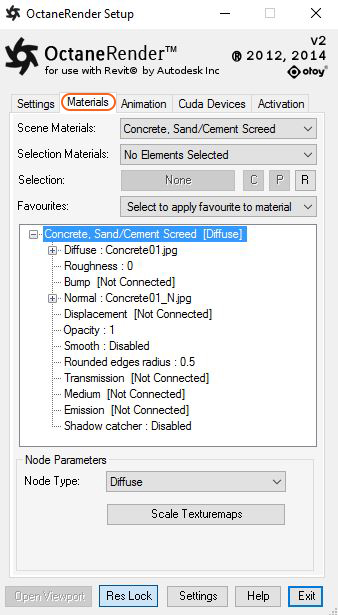
Figure 2: Access the Octane Materials under the Materials tab in the OctaneRender Setup window.
Existing scene materials can be sampled from the OctaneRender Viewport by activating the Material sample button on the top row of the OctaneRender Viewport window then clicking on an object in the scene to sample its material and load it in the Materials tab. (figure 3).
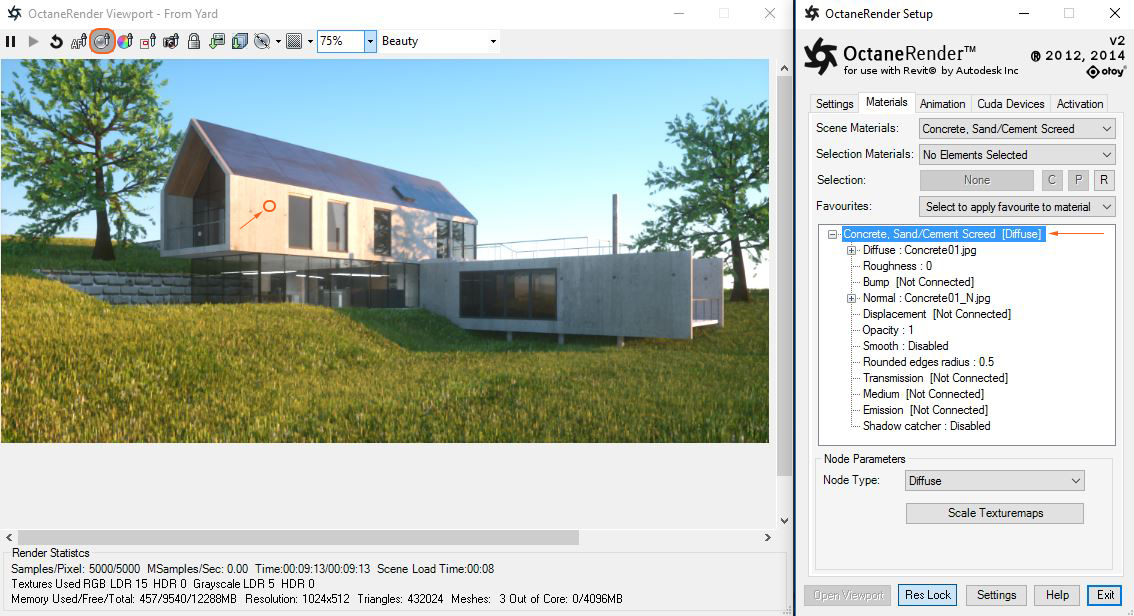
Figure 3: Using the Material sample button to load a scene material into the Materials tab of the OctaneRender Setup window.
Material Tab Controls
Scene Materials – This combo box contains a list of all Revit materials in the scene. Selecting a material from this box will present the Octane material for that Revit material in the tree structure.
Selection Materials – This popup box contains a list of all Revit materials for the elements that are currently selected in Revit. Selecting a material from this box will present the Octane material for that Revit material in the tree structure.
Selection – This is a button which becomes available if you select a single Revit element which has a location (ie. a Component). Pressing this button allows the selected element to be proxied and instanced (see Geometry Management Overview section).
Comments
0 comments
Please sign in to leave a comment.