
The Mix material is used to mix any two material types. It accepts any two material nodes and the mix may be controlled by a value, color, or texture.
In the following example, the Mix material is being used to mix two Diffuse materials together using an Octane Checks texture as the Mix Amount (figure 1).
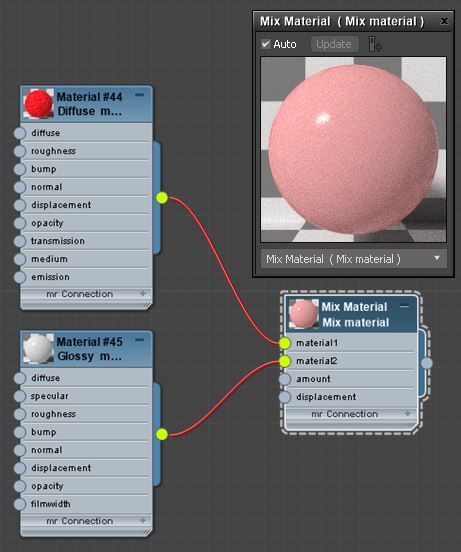
Figure 1: The Mix Material

Figure 2: The Checks texture is used to control the mixing of two materials
Mix Material Parameters
Amount
By default the Amount is a slider that goes from 0 to 1 and controls the amount of influence each material has on the surface. A value of 1 means than Material 1 has the highest amount of influence. A value of 0 means that Material 2 has the highest amount of influence. Values in between blend the materials together. Click on the checker swatch to the right of the slider to connect an Octane texture node to control the mix amount. Procedural or image based textures can be used to control the amount. Dark and light texture values correspond to an amount setting of 0 and 1.
Material 1 and Material 2 slots are used to connect Octane material to the Mix material. Any Octane material can be connected to a slot including other Mix materials. A complex material can be created by connecting multiple Mix materials together. Common uses for the Mix material include combining a Diffuse material with and emissive output with a glossy material that has specular reflections or combining a shiny glossy material with a specular material that uses a medium to create subsurface scattering effects.
Displacement
Connect an Octane Displacement node to the Mix materials’ Displacement slot. This is preferable to mixing materials that have their own displacement nodes/settings.
Comments
0 comments
Please sign in to leave a comment.