
The 3ds Max plugin has access to the OctaneRender online LiveDB.
The LiveDB is OctaneRender’s asset database. It stores not only materials but groups of nodes and even whole scenes shared by the OctaneRender Community and the OctaneRender Team. The asset database makes it easier for moving groups of nodes, scenes and assets across a myriad of OctaneRender Editions not limited to the Standalone Edition.
The LiveDB can be accessed by opening the Render Setup window, activating the Tools tab, and clicking on the Open LiveDB button.
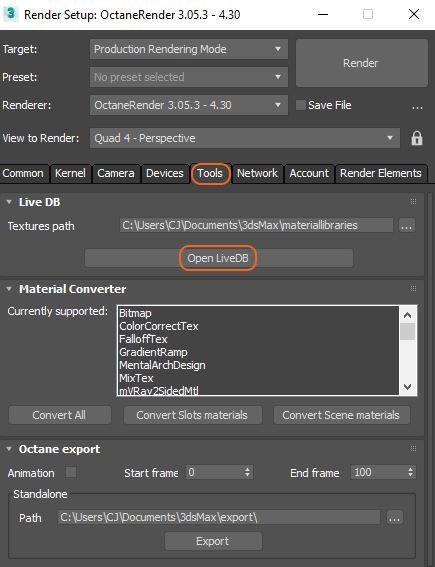
Many of the materials contain texture maps. 3ds Max cannot store these texture maps within a scene, therefore, the texture maps will be saved to disk under a specified folder and the material name will be automatically added to the path. The path can be customized as shown in the following illustration.

To use a material in the LiveDB, right-click on the material thumbnail and choose Import.

Comments
0 comments
Please sign in to leave a comment.