
The IES Texture node allows an IES profile to be used with geometry as an illumination source.

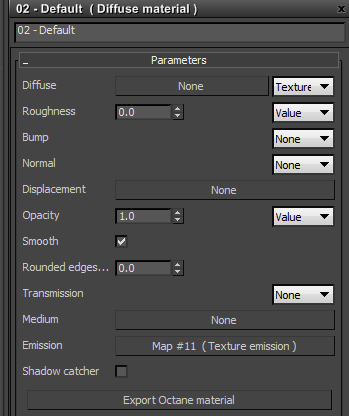
Then attach a Texture Emission map to the Emission parameter of the Diffuse material.
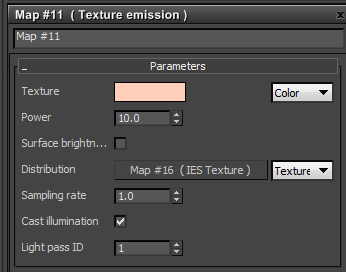
Attach an IES Texture to the Distribution parameter of the Texture Emission.
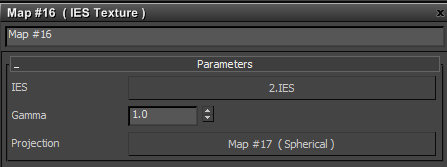
Select Normal Space (IES light) as the coordinate space for the projection of the IES light.

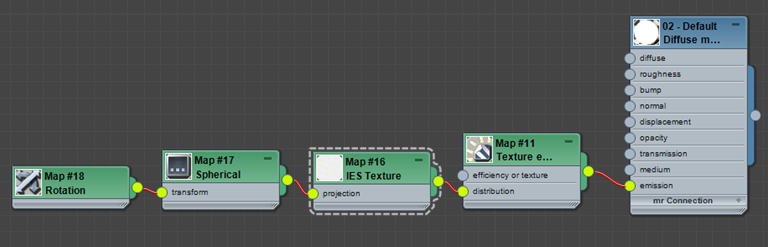
Here is how the graph in the slate material editor looks:
Radius
This sets the radius of the sphere.
Power
This is the wattage of the light source. Each light in the scene should be set to its real world wattage. For example, a desk lamp could be set to 25 watts, a ceiling lamp to 100 watts, and an LED light to 0.25 watts.
Color Type
The light emission may be based on a color hue or a temperature from warmer values of 500 to coolest values of 12000.
Temperature
The temperature (in K) of the light emission.
Gamma
This Controls the Gamma of the IES file.
Orientation
When an IES file is loaded, this attribute adjusts its orientation or the direction of the light which can then be further adjusted through the IES file’s projection node.
Samples
The sampling rate allows users to choose which light sources will receive more samples. Adjusting the light source sampling rates of the emissions in the scene will lead to a better balance between light sources.
Visible
When this is ticked off, the light source will be invisible for the camera, reflections and refractions.
Light Pass ID
Light passes 1 to 8 capture the contribution from the Octane IESLight source emitter. IESLight emitters (just like the Texture emitter and blackbody) have a light pass ID parameter assigning the emitter to a light pass. It is possible to assign multiple emitters to the same light pass. If nothing is configured, all emitters contribute to light pass 1 (default).
Comments
0 comments
Please sign in to leave a comment.