
The LiveDB can be accessed by setting any Blender window to Materials LiveDB.

After setting this type, you will get the OctaneRender LiveDB materials tree inside the screen.
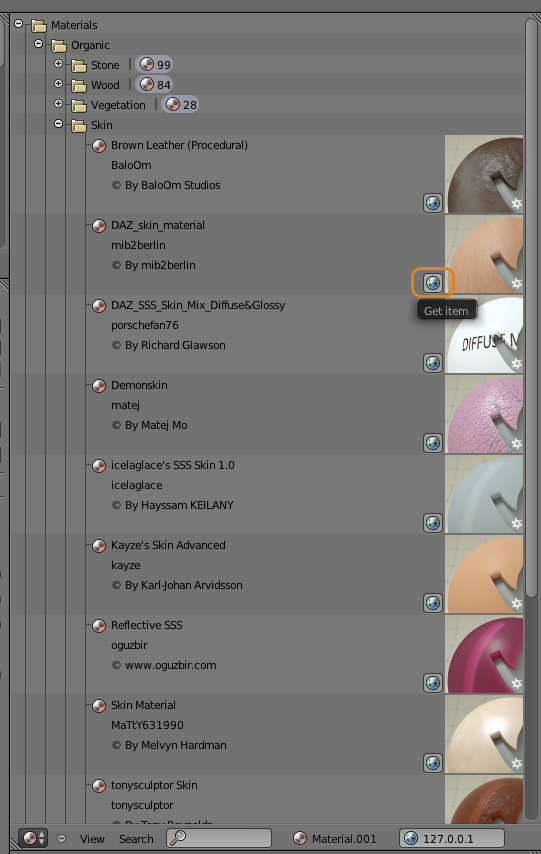
You can press the Get item button next to material preview to download and set the chosen material to currently active Blender material (its name is shown on the header of LiveDB screen). If the active object does not have any material set yet – the material will be created automatically.
Downloading of materials will be made asynchronously, so you will be able to continue working with scene during the process.
Filtering:
If you need to find a specific material – you can filter the entire LiveDB material tree by using the Search box at the bottom of the window.

After the LiveDB material is downloaded and assigned to an object, you can work with it as with any other OctaneRender material: change the nodes, values, nodes connection, etc.

Comments
0 comments
Please sign in to leave a comment.