
Diffuse Materials
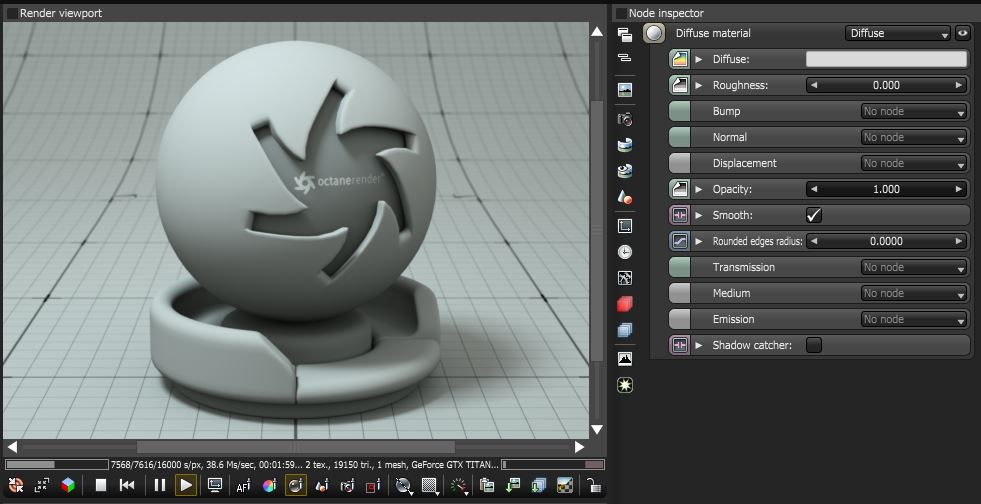
Diffuse materials have the following parameters to adjust:
Diffuse
The Diffuse value gives the material its color.
Roughness
This parameter allows users to simulate very rough surfaces like sandpaper or clay. It works similar to Oren-Nayer. Roughness is set to the minimum (0) by default.
Bump / Normal
Both the Bump and Normal channels can load images to control the amount of bump mapping and normal mapping. The Bump channel is set to Greyscale Image to load a bump map. The Normal channel should be set to the image data type to load a full color normal map.
The Bump channel simulates a relief using a greyscale texture interpreted as a height map while the Normal Channel distorts normals using an RGB image. Note that Normal maps take precedence over bump maps, therefore you can not use both a normal map and a bump map at the same time.
Displacement
The displacement mapping allows the height of points on a surface to be adjusted based on an image value to give objects depth and detail. The displacement is a pin in the material nodes that needs to be connected to a displacement node. A displacement texture can be specified in the displacement node, as well as the amount of displacement (in meters), the offset (in meters) and the level of detail (i.e. the maximum resolution of the resampled displacement map). Image textures are supported and of RGBA images the red channel is used as height map.
Displacement only works with the texture image node over a mesh with an UV map. No other Octane nodes can be used for displacement.
Opacity
Opacity sets the transparency of the material. Set the data type to alphaimage (if the image has an alpha channel) or floatimage (for black/white images) to load an image to set the transparency (use the Invert checkbox if necessary to adjust whether black or white regions are considered transparent.
Smooth
Normal Smoothing is a Boolean value that sets whether to smooth the normals of all meshes sharing that material. When off, the materials can be faceted and polygonal.
Rounded Edges Radius
This is the radius of the rounded edges that are rendered as a shading effect. The shading effect is created at render time that easily and efficiently round the sharp edges of geometric objects without modifying and reloading the geometry. The parameter is a float value and requires vertices to be welded prior to applying the round edge value. This is very useful to virtually bevel hard edges during render time especially when using low-polygon models.
Transmission
The Transmission value gives the basic texture of the material.
Medium (Absorption or Scattering)
Absorption or Scattering Medium (medium)
This sets the medium inside the material.
- Absorption Medium
Absorption means that the material slightly absorbs light while passing through. The color resulting from this absorption is dependent on the distance light travels through the material. With increased distance it will get darker, and if the absorption is colored it will get more saturated. It works in a substractive way, so users will need to configure the inverted colour instead to get an absorption colour desired
- Scattering Medium
Similar to the absorption medium but with the option to simulate subsuburface scattering. This is a medium with single-scattering SSS, and also absorption. To use this medium, a volume needs to be created and it will not work correctly on simple surfaces. Users can use it to create true unbiased SSS, using various parameters, including scattering texture, emission texture and various other parameters. Note that this is single-scattering SSS, not multiple-scattering. It is much faster than the latter, and much more practical, although it does not allow a few things such as volumetric caustics.
For more information on applying absorption and subsurface scattering on Diffuse and Specular materials, refer to section on Mediums - Subsurface Scattering & Volumes.
Emission
The Emission setting controls whether the material acts as a light source. For more information on using the Emission parameter, refer to the Mesh Emitters in the Lighting section.
Shadow Catcher
This switches the material to a shadow catcher. The material will be transparent unless there is some (direct) shadow cast onto the material which will make it less transparent depending on the shadow strength. More information on the Shadow Catcher parameter, refer to the Shadow Catcher article under this section.
Comments
0 comments
Please sign in to leave a comment.