
Saving / Loading Scenes
After you are done setting up your scenes, you can save them to an OCS file. This will allow the scene to be reopened and edited at a later date.
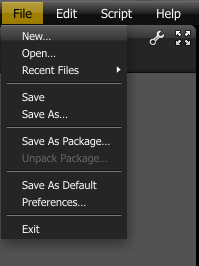
To save your scene, click on Save As… from the File menu. OctaneRender Standalone also has a packager for saving and storing an .ocs file that contains all referenced external files into one archive. This feature replaces embedding images in .ocs files by packing the whole scene instead. This enables its movement across applications and to the cloud.
Notes:
Since the assets are no longer unpacked, earlier versions ( < v2.22) will not be able to find the assets of projects saved with v2.22. This is due to a limitation in the older versions. If users would like to open a v2.22 .ocs project using an earlier version of OctaneRender, the easiest would be to first save the project into a package (.orbx), which will pull all assets into the package which in turn can be opened by the earlier versions.
When saving a project as an .ocs file, all assets coming from packages (i.e. image/geometry/.. files coming from .ocm/.orbx files) are stored as references and not unpacked. This reduces clutter on the the users’ drives since the assets stay in the packages they come from originally (LocalDB or LiveDB) and are not scattered around to where the projects are saved. More so, updating a material in the users’ LocalDB will automatically update all projects that use the material.
To reload a scene, click on Open and select the .ocs file to open.
You can also drag and drop the OCS file from the folder window directly to the OctaneRender graphic user interface.
Reloading Textures / Images / Objects
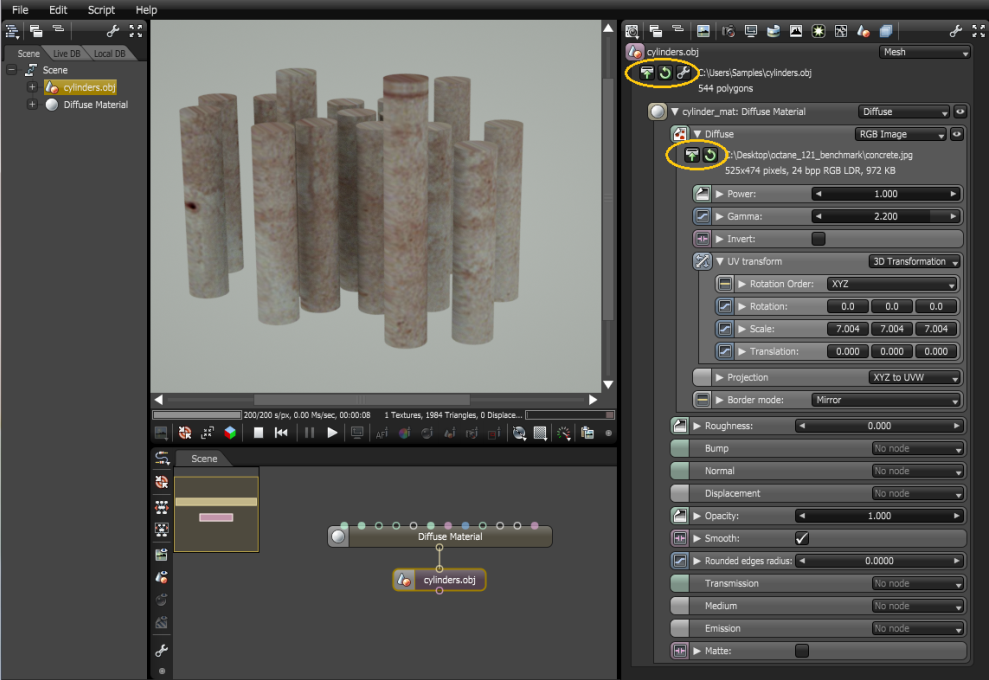
During the process of working on a scene some textures or objects may need to be reloaded or replaced. At the top of any Object Node or Image Node the active path to that image or object is displayed. Click on the load icon to the left of the path to choose a different file while keeping the rest of the scene intact. Click on the circular arrow icon to reload the object or image.
Comments
0 comments
Please sign in to leave a comment.