
Path Tracing Kernel
Path Tracing is best used for realistic results. The render times are higher than Direct Lighting but the results can be more photorealistic. It can have some difficulties with small light sources and proper caustics (for which PMC is better suited).
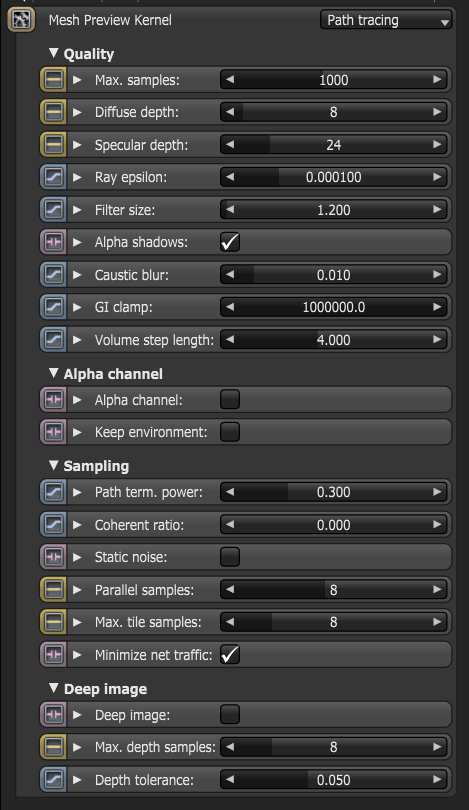
Max. Samples
This sets the maximum number of samples per pixel before the rendering process stops. The higher the number of samples per pixel, the cleaner the render.
Diffuse Depth
Specifies the depth of the diffuse where depth is the maximum number of times the ray can bounce/reflect/refract in a surface. Higher amounts also mean higher render times but more realistic results.
Specular Depth
Specular depth controls the number of times a ray can be refracted before dying. Higher numbers mean higher render times but more color bleeding and more details in transparent materials. Low numbers can introduce artifacts, or turn some refractions into pure black.
Ray Epsilon
The ray epsilon is the distance to offset new rays so they don’t intersect with the originating geometry. If the scale of your scene is too large, precision artifacts in the form of concentric circles may appear. In that case, increasing the ray epsilon can make these artifacts disappear.
Filter Size
This sets the pixel size for improving aliasing artifacts in a render. However, if the filter is set too high, the image can become blurry.
Alpha Shadows
If alpha maps are used in the scene, this setting controls whether the shadows will be calculated from the mesh geometry or from the alpha map.
Caustic Blur
This is used to approximate caustics on rough surfaces and increase or decrease the sharpness of caustic noise. A zero value provides the sharpest caustics and increasing this value increases the blurring effect to make caustics appear softer.
GI Clamp
Controls the bounces of indirect light and provides a facility to balance out global illumination and noise produced by scene caustics. Reducing the GI clamp lessens some noise contributed by strong light passing through clear or specular objects (i.e. A value of zero will just result in direct light only and no bouncing of light in a scene).
Volume Step Length
This is the step length that is used for marching through volumes.
Alpha Channel
This option removes the background and renders it as transparent. This can be useful if the user wants to composite the render over another image and does not want the background to be present.
Keep Environment
This option is used in conjunction with the Alpha Channel setting. It renders the background transparent but allows the background/environment to contribute to the final render's illumination.
Path Termination Power
This parameter provides a system where users can tweak samples/second vs. convergence (how fast noise vanishes). Increasing this value will cause the kernels to keep paths shorter and spend less time on dark areas (which means they stay noisy longer) but may increase samples/second. Reducing this value will cause kernels to trace longer paths on average and spend more time on dark areas. In short, high values increases the render speed but may lead to higher noise in dark areas.
Coherent Ratio
When Coherent mode is enabled either for Path Tracing or Direct Lighting the render becomes noise-free quicker but the downside is flickering effects when rendering animations. For stills and action-heavy animations and camera movement, Coherent mode might save some render time.
Static Noise
When this attribute is enabled, the noise is static, i.e. doesn’t change between frames. This is disabled by default. Note that the noise is fully static as long as the same GPU architecture is being used for rendering. Different architectures will produce slightly different numerical errors which manifest as small differences in the noise pattern.
Parallel Samples
This controls how many samples are calculated in parallel. If set it to a small value, OctaneRender will require less memory to store the sample state but may render slower. If this is set to a high value, more graphics memory is needed and rendering becomes faster. The change in performance depends on the scene, the GPU architecture, and the number of shader processors contained on the GPU.
Maximum Tile Samples
This controls the number of samples per pixel that Octane will render until it takes the result and stores it in the frame buffer. A higher number means that results arrive less often in the frame buffer but reduce the CPU overhead during rendering.
Minimize Net Traffic
If enabled, this setting will distribute the same tile to the net render slaves until the max samples/pixel has been reached. Work done by local GPUs is not affected by this option. This way a slave can merge all its results into the same cached tile until the master switches to a different tile.
Deep Image
This is an option to enable rendering of deep pixel images used for deep image compositing.
Maximum Depth Samples
This is used when deep image rendering is enabled. This sets the maximum number of depth samples per pixel.
Depth Tolerance
This is used when deep image rendering is enabled. The depth samples whose relative depth difference falls below this tolerance value are merged together.
Comments
0 comments
Please sign in to leave a comment.